How to Export Event Data: Guest Lists, Budgets and More

How to Export Event Data: Guest Lists, Budgets and More
To export event data, pull it from your planning tool as a CSV file, check it against the live list, and keep that file locked down. CSV opens in any spreadsheet, works for guest lists, budgets and payment records, and moves cleanly to a caterer, venue or accountant. The export is only as good as the system it comes from. If your guests, vendors, money and tasks sit in one place, you export once and get a complete picture. If they are scattered across five tools, you spend an evening stitching files together. Jubiliq keeps those pieces together and offers CSV export for accounts.
TL;DR
- Use CSV for spreadsheets, reports and accounting. Use ICS only when the destination is a calendar app.
- A useful guest list export carries names, contact details, RSVP status and tags. Decide which columns the recipient needs before you download.
- Check every export for blanks, duplicates and stale rows before you send it. An export is a snapshot, and the live list is the real record.
- An exported guest list is personal data. Share the minimum, send it through a secure channel and delete old copies.
- Event data is easiest to export when it lives in one platform from the first invitation to the day sheet.
Table of Contents
- What “event data” actually means
- Step 1: Decide what you are exporting and why
- Step 2: Filter before you download
- Step 3: Pick the right file format
- Step 4: Know what a good guest list export contains
- Step 5: Export from a platform that already holds everything
- Step 6: Check the export before you send it
- Step 7: Protect the file once it exists
- Exporting for common event types
- What we believe about exporting event data
- Plan the event, then export with confidence
- FAQ
- Sources
What “event data” actually means
The phrase covers several different datasets, and each one gets exported for a different reason.
| Dataset | Typical contents | Who usually needs it |
|---|---|---|
| Guest list | Names, emails, phones, RSVP status, meal choices, tags, table assignments | Caterer, venue, seating planner, printer |
| Registrations and ticket sales | Buyer, ticket type, amount, date, payment status | Treasurer, bookkeeper, finance team |
| Donations and sponsorships | Donor, amount, pledge or paid, receipt status | Nonprofit finance, development team |
| Budget | Line items, estimates, actuals, deposits, balances | Couples, finance approvers, planners |
| Vendors and contracts | Contact, deliverable, price, due dates | Planner, event owner, accounting |
| Schedule and tasks | Times, owners, deadlines | Day-of team, calendar apps |
Before you click any export button, name the person who will receive the file and what they will do with it. That one decision determines the columns you keep, the format you choose and how carefully you handle the file.
Step 1: Decide what you are exporting and why
Most bad exports come from exporting everything and sorting it out later. A caterer does not need your guests’ phone numbers. A bookkeeper does not need dietary notes. A venue coordinator needs a headcount, not a donor ledger.
Write down three things:
- The recipient. A vendor, an accountant, a co-host, or yourself for a backup.
- The purpose. Catering counts, seating, reconciliation, a mail merge, an archive.
- The columns. Only the fields that purpose requires.
This is also a privacy habit. The EU’s General Data Protection Regulation says that by default only the personal data needed for each specific purpose should be processed, including limits on the amount collected and who can access it (GDPR, EUR-Lex). It is an EU regulation, so it applies when your guests are in the EU. The habit pays off anywhere: a smaller file is easier to check and safer to share.
Step 2: Filter before you download
Export tools often follow the view on your screen. One reservation platform’s help page says its guest export reflects the filters currently applied (Tabledoo help). That is a good model for any list: filter first, then export.
Useful filters for events:
- RSVP status: confirmed only, for a final headcount to the caterer.
- Tag or group: family, VIP, speakers, sponsors, table hosts.
- Ticket type: to reconcile one price tier at a time.
- Unpaid or pending: to chase balances.
If you filter, glance at the row count before you download and confirm it matches what you expect. A filter left on from yesterday is the most common reason a “complete” export is missing forty people.
Step 3: Pick the right file format
The choice is simpler than it looks.
- CSV is a flat grid of values. It suits spreadsheets, reports, accounting imports and data pipelines.
- ICS is a calendar format. It carries recurrence rules, time zones, alarms and stable identifiers, which CSV has no way to represent (iCalConverter).
- PDF or print view suits the day sheet your team carries on site.
For guest lists, budgets, ticket sales and donations, choose CSV. For a run-of-show schedule that staff want in their phone calendars, choose ICS. For the final hand-off on the day, print.
If you open a CSV in Excel and every value lands in one column, the delimiter or encoding is usually the cause. Use Excel’s text import (Data tab, then From Text/CSV) instead of double-clicking, and save edited files as CSV UTF-8 so names with accents or apostrophes survive.
Step 4: Know what a good guest list export contains
Guest list exports vary widely between tools. One restaurant platform’s export includes name, email, phone, extra contacts, birthday, tags, visit and booking counts, marketing opt-in and status, while leaving staff notes out by default (ResRes help). Another includes ID, first and last name, email, phone, tags, VIP status, notes and created date, but leaves out visit counts and spend (Tabledoo help).
The lesson for events: look at the column list before you rely on the file. For an event, the columns that tend to matter are:
- First and last name, as separate fields so you can sort and mail merge
- Email and phone
- RSVP status and the date of response
- Party size and plus-ones
- Meal choice and dietary needs (see our dietary restrictions list for what to track)
- Table or seating assignment
- Tags such as VIP, family side, sponsor or speaker (our VIP guest management playbook covers how to use them)
- Ticket type and payment status, where tickets are sold
If you are planning a wedding, our guide to locking your wedding guest list and exporting vendor-ready RSVPs walks through freezing the list so the numbers you send to vendors are final.
Step 5: Export from a platform that already holds everything
The hardest part of exporting event data is rarely the button. It is that the data lives in different places: RSVPs in one tool, payments in another, vendor quotes in email, budget in a spreadsheet. Each export then has its own columns, its own names for the same guest and its own idea of who is confirmed.
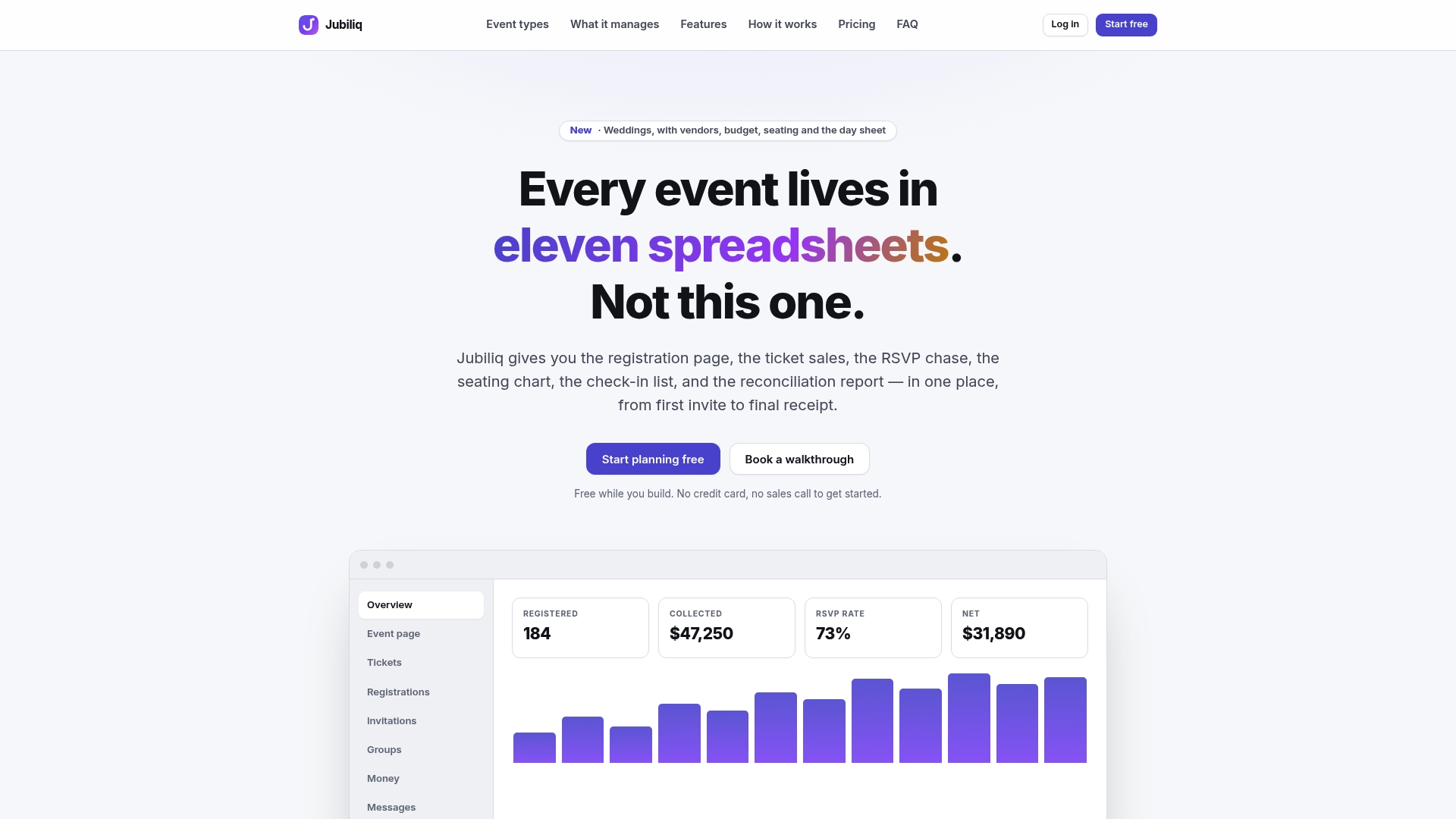
Jubiliq is built to keep the whole event in one place: guest list with RSVP tracking, budgeting, vendors and contracts, task scheduling, seating and catering workflows, ticket and sponsorship sales, donations and a printable day sheet. When you need data out, there is one source. Jubiliq also offers CSV export for accounts, so the money side of a paid event can go straight to whoever keeps the books.
Three practical consequences for the person doing the exporting:
- One version of each guest. The headcount you send the caterer comes from the same list that drives your RSVP tracking, not from a copy someone edited last week.
- Real-time numbers. Jubiliq’s dashboards show progress as it happens, so you can see where things stand before you export.
- An interface that fits the event. Jubiliq adapts to the event type and hides tools you do not need, so a wedding export is not cluttered with ticketing fields and a gala is not cluttered with wedding ones.
If you are still sorting RSVPs, our guide to RSVP tracking beyond 20 guests covers keeping responses clean enough that the export is trustworthy from the start.
Step 6: Check the export before you send it
A file that downloaded successfully is not a file that is correct. Spend ten minutes on these checks, especially on a list that will drive a catering order or a seating chart.
Count rows against the live list
Compare the number of data rows (excluding the header) with the count shown in your planning tool for the same filter. If the counts differ, a filter, a hidden group or a pagination limit is the likely cause.
Look for blanks
Sort each critical column and look at the top and bottom. Blank emails, missing RSVP statuses and empty meal choices cluster together. For a catered event, a blank meal choice on a confirmed guest is a problem you want to find now, not at the buffet.
Look for duplicates
Guests get entered twice: once by you, once by a relative, or once under a nickname. In a spreadsheet, sort by email and then by last name and scan for adjacent repeats. Use your spreadsheet’s remove-duplicates feature on a copy, never on the original export, and review what it flags before deleting. Two people sharing one email address, such as a couple, are not duplicates.
Look for stale information
Check the export’s timestamp against your last edit. Look for guests who declined but still appear in a headcount, plus-ones that were later cancelled and vendors whose quotes were replaced. Our guest communication plan shows how to keep RSVPs synced so fewer stale rows reach the file.
Check formatting damage
Spreadsheets quietly change data. Phone numbers lose leading zeros, long ID numbers turn into scientific notation, and some names and dates are reformatted. Format phone and ID columns as text before you edit, and keep the original download untouched in a separate folder.
Do a spot check
Pick five guests at random and compare every field with the live record. If five out of five match, you can trust the rest. If one is off, find out why before sending.
Step 7: Protect the file once it exists
An exported guest list is the whole list leaving the building in one file. One help page puts it this way: exporting is a separate permission from viewing because downloading every contact in one file is a different act from looking at one guest (Tabledoo help). The same page says an export is a snapshot, the live list is the real record, and the file should be deleted when you are done.
Good habits for event organizers:
- Share the minimum. Remove columns the recipient does not need. A venue needs names and counts, not phone numbers.
- Use a secure channel. Send through a link with a password or access control rather than attaching it to a wide email thread.
- Limit who can export. Keep download rights with the organizer and one or two trusted co-planners.
- Delete old copies. After the event, remove downloads, email attachments and shared-drive duplicates you no longer need.
- Keep the live list as the record. Treat every export as outdated the moment you edit the source.
For guests in the EU, GDPR Article 32 requires appropriate technical and organizational measures, including pseudonymization and encryption where appropriate, and the ability to keep personal data confidential and restore access after an incident (GDPR, EUR-Lex). If you plan to email guests from an exported list afterward, you also need to understand your local rules on marketing messages. In the US, the CAN-SPAM Act sets requirements such as sender identification and a working opt-out for commercial email. If you are unsure how these apply to your event, ask a lawyer or your organization’s counsel. Event updates sent to invited guests through your planning tool’s segmented email blasts keep the guest list where it already lives, so there is no extra file to protect. Our guide to event website essentials covers the privacy basics of publishing event pages.
Exporting for common event types
Weddings
Couples typically export three things: the confirmed guest list with meal choices for the caterer, the seating list for the stationer and the budget for a parent or a financial check-in. Lock the list first, filter to confirmed guests, and export only the columns each vendor needs. Weddings do not involve paid tickets, so on Jubiliq this fits the free planning-only mode.

Corporate events
Teams export attendee lists for badge printing, registration data for a CRM or finance system and an attendee file for post-event follow-up. Keep company contact data inside your organization’s approved systems, and send your post-event survey to the same filtered group. See our post-event survey questions for questions that lead to action.
Fundraising galas
Nonprofits need ticket sales, sponsorships and donations in one reconciled file, split between paid and pledged. Export by category, compare with the payment processor totals and give the finance team a clean CSV rather than three half-matching sheets.
Golf outings and large parties
Golf outings need foursome assignments, shirt sizes, sponsor holes and paid status. Large parties need headcounts and dietary groupings. In both cases, tags and filters before export save hours of manual sorting.
What we believe about exporting event data
Most organizers think of export as a rescue operation: something you do when data is trapped. We think it should be routine, a small step at the end of a clean process.
The reason exports go wrong is that event data is fragmented. Guests in one place, payments in another, vendor details in someone’s inbox. Every export then becomes a reconciliation project. That is why Jubiliq puts the guest list, budget, vendors, tasks and payments in one platform, and why the interface adapts to the event type and shows only the tools that event needs.
When the data is in one place, the export is the easy part. You filter to the people who matter, download the CSV, and hand the caterer, the venue or the bookkeeper exactly what they need and nothing more. The printable day sheet covers the rest on the day itself.
HCRF
Plan the event, then export with confidence
If your guest list, budget and vendors are spread across spreadsheets and inboxes, the fix is to move them into one place before the next export is due. Jubiliq’s Starter plan is $0 per event, which covers events without paid tickets such as weddings and parties. The Organizer plan charges 2% per paid registration, and Enterprise is for multi-event organizations. You can see the plans on the Jubiliq site.
FAQ
How do I export a guest list from an event planning tool?
Open the guest list, apply the filters you need (for example, confirmed guests only), and look for the export or download option, which is usually CSV. Confirm the row count against the live list, then open the file in a spreadsheet to check it. Share only the columns the recipient needs.
Which file format is best for exported event data?
Use CSV for guest lists, budgets, ticket sales and anything going to a spreadsheet or accountant. Use ICS when the data is a schedule that should appear in a calendar app. CSV cannot carry calendar features such as recurrence rules and time zones, which is what ICS is for (iCalConverter).
Why does my exported CSV look wrong in Excel?
The usual causes are a delimiter mismatch or an encoding problem. Import the file through Excel’s Data tab rather than double-clicking it, choose the right delimiter in the preview and save edited versions as CSV UTF-8. Format phone numbers as text so leading zeros stay.
Is it safe to email an exported guest list?
It is safer to share a password-protected link than to attach the file to a long email thread. Remove columns the recipient does not need, limit who can download, and delete old copies after the event. If you have guests in the EU, GDPR expects appropriate security measures for personal data.
How often should I export my event data?
Export when someone needs a specific deadline’s numbers, such as the final headcount for the caterer, and treat each file as a snapshot. The live list stays the record, so re-export instead of editing an old file.
Sources
- Regulation (EU) 2016/679 (GDPR), EUR-Lex
- Filtering, sorting and exporting your guest list, Tabledoo Help
- Exporting guests, ResRes Help
- ICS vs CSV for Calendar Data, iCalConverter