Producers, lock your run of show 48 hours before doors
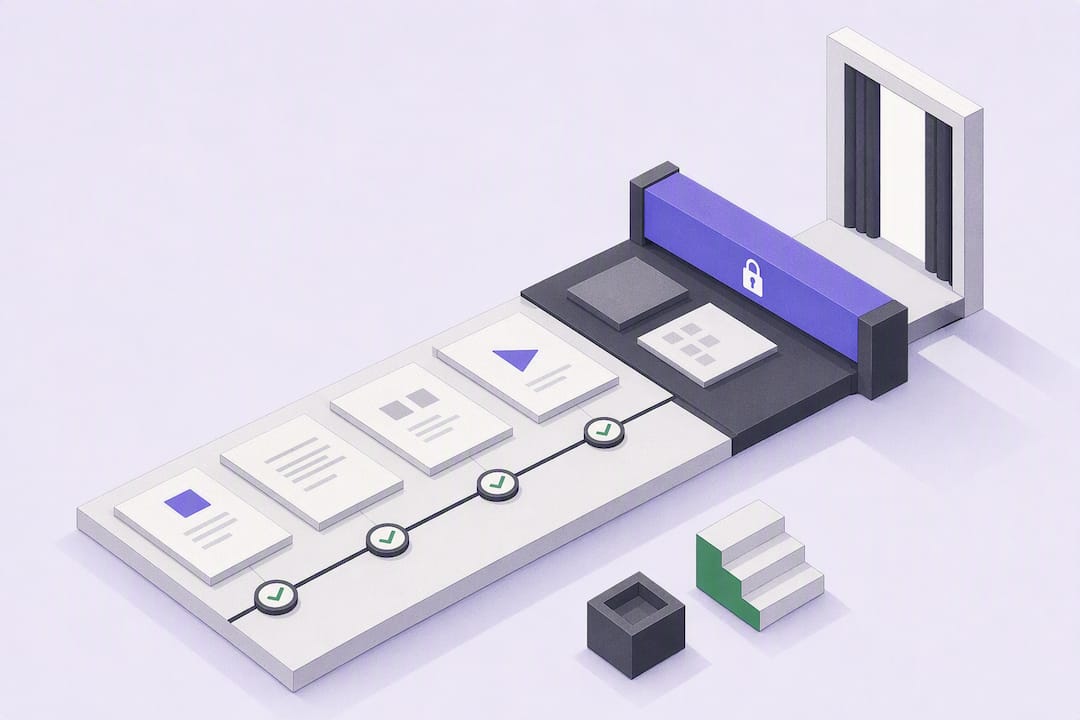
Producers, lock your run of show 48 hours before doors
A run of show is the minute-by-minute, crew-facing script that tells every operator, speaker, and stage manager exactly what happens next and who’s responsible for it. It exists to stop timing drift and miscommunication before they turn into a dead-air moment on stage. Unlike an agenda, it’s built for the people running the event, not the people attending it, and it’s meant to be updated live, right up until doors open.
TL;DR:
- A run of show must be a real-time synced document with one designated owner to avoid version conflicts during the event.
- It requires precise timestamps, separate cues for simultaneous actions, and clear ownership, usually the stage manager.
- The ROS should be built around fixed anchors like doors opening and scheduled segments, then broken down into detailed cues with media and contact info.
- Maintaining a single, live master file, announced before edits and kept locked, prevents confusion and execution errors on event day.
- Using templates, automated generators, and platforms like Jubiliq can help ensure consistency, reduce manual errors, and streamline updates.
Table of Contents
- What A Run Of Show Actually Covers
- Run Of Show Vs Agenda Vs Production Schedule
- The Run-Of-Show Template: Columns You Actually Need
- How To Build A Run Of Show Step By Step
- Keeping One Master File: Locking, Updates, And Live Changes
- Common Pitfalls And How To Write A Fallback Row
- Templates, Generators, And Day Sheets: Picking The Right Format
- How Jubiliq Fits Into A Living Run-Of-Show Workflow
- Try Jubiliq For Your Next Event’s Run Of Show
- Templates And Guides Worth Bookmarking
- Sources
- FAQ
- A Practical Perspective On Run-Of-Show Discipline
What A Run Of Show Actually Covers
A run of show, often shortened to ROS, is the operational script your crew follows second by second. It logs exact timestamps, technical cues, and who owns each action, from the moment doors open to the final walkout. Where an agenda tells attendees “9:00 AM: Keynote,” a run of show tells the stage manager, “8:58 AM: House lights dim, cue spotlight op, confirm keynote mic is live, walk speaker to mark.”
The audience for this document is narrow and specific. It’s read by the stage manager, the AV desk, the show caller, the emcee, and the producer, rarely by anyone outside the production team. Everyone in that group needs the same information at the same moment, which is why the formatting rules matter more than they seem to.
The single most important rule: one action per row. If two things happen at the same moment, like a lighting cue and a mic hand-off, they get separate rows, not a combined line that forces someone to parse two instructions at once. Rows should also use absolute clock time (8:58 AM) rather than elapsed time (“+2 min”), because a crew running on a shared clock stays synchronized even if an earlier segment ran long.
A few habits separate a usable ROS from a confusing one:
- Write cues as actions, not labels (“Cue house lights to 20%,” not “Lighting”).
- Log simultaneous cues as separate rows, even if they happen in the same second.
- Use real clock times throughout, never elapsed or relative time.
- Name a single owner per row, not a department.
- Keep language short enough to read at a glance under stage lighting.
Run Of Show Vs Agenda Vs Production Schedule
These three documents get confused constantly, and that confusion is where shows fall apart. An agenda is attendee-facing: it tells guests what to expect and when. A run of show is crew-facing: it tells your team exactly what to execute. A production schedule covers the logistics around the event itself, load-in, load-out, rigging, sound checks, and vendor arrival windows, usually spanning hours or days rather than minutes.
The failure mode is predictable. Someone updates the agenda after a speaker changes, forgets to update the ROS, and the AV desk cues a video for a session that no longer exists. Mismatches between these documents are a common root cause of show-day failures, and the fix isn’t more diligence, it’s structure.
The cleanest workaround is generating all three from one master program record, so a time change in one place propagates everywhere else instead of living in three disconnected files.
- Agenda: owned by the event producer, locked once attendee communications go out.
- Run of show: owned by the stage manager, updated through rehearsal and locked shortly before doors.
- Production schedule: owned by the technical director, locked once vendor load-in times are confirmed.
Each document has its own owner and its own lock point, and none of them should be edited in isolation once rehearsal starts.
The Run-Of-Show Template: Columns You Actually Need
A usable run of show template has a fixed set of columns, and skipping any of them is usually what causes a scramble backstage. Standard columns include Clock Time, Duration, Segment/Cue, Talent/Speaker, Owner, AV/Media asset, Mic Plan, and Fallback/Contingency notes, and each one earns its place for a specific reason.
- Item #: sequential numbering so a crew member can say “we’re on cue 14” over headset instead of describing the moment.
- Clock time: the absolute time the cue fires, never elapsed time.
- Duration: how long the segment runs, used to catch overruns before they compound.
- Segment/Cue: written as an action, not a label. “Bring up house lights to 50%” beats “Lighting cue.”
- Talent/Speaker: the name of whoever is on stage or mic during that row.
- Owner: the one person responsible for executing that specific row, not a department.
- AV/Media asset: the exact file name and its storage location, not “the video file.”
- Mic plan: which mic number or channel is live, and who’s wearing it.
- Notes/fallback: what to do if the cue fails, and who makes the call to skip it.
- Contact list: phone numbers for vendors, talent handlers, and venue staff, usually on a separate tab.
Adding a Technical Notes column alongside Audio, Visual, and Lighting lets each operator scan a single column instead of hunting through a combined field. Five baseline tracks are commonly recommended: host/stage actions, visuals, audio routing, lighting, and technical infrastructure.
Cue numbering also needs a rule for simultaneous actions. If the emcee walks on stage at the same instant the house lights come up, that’s cue 22 and cue 23, not one merged row that leaves someone guessing which action they’re responsible for.
How To Build A Run Of Show Step By Step
Building a run of show from scratch is less about the spreadsheet and more about the sequence you follow to fill it in. Skip a step here and you’ll find the gap during rehearsal, or worse, during the live show.
- Establish your anchors first. Doors open, program start, hard curfew, and any fixed breaks (lunch, intermission) go on the page before anything else. These are the fixed points everything else gets built around.
- Break the program into segments and assign durations. Each segment (welcome remarks, keynote, panel, awards) gets an estimated length, plus a buffer of two to five minutes depending on how unpredictable that segment is. A live Q&A needs more buffer than a scripted video.
- Translate segments into cue rows. This is where “Keynote” becomes ten or fifteen individual rows: walk-on, mic check, slide advance cues, walk-off. Every row gets exactly one owner.
- Populate AV and media details. Log the exact file name for every video, slide deck, or audio cue, along with where it’s stored, and build out the mic plan so every handheld, lav, and podium mic has an assigned channel and user.
- Rehearse and lock. Run a full technical rehearsal with the actual operators who’ll be working the show, not stand-ins. Locking the ROS roughly 48 hours before doors gives you enough runway to fix what the rehearsal exposes without leaving so much time that late changes creep back in.
- Set your change protocol. Decide now who’s allowed to approve a change on show day, usually the stage manager alone, and how that change gets communicated (headset call plus an immediate edit to the master file, never a silent edit).
Pro Tip: Run your technical rehearsal with the same people who’ll operate the board, mics, and switcher during the actual show. A stand-in who’s never touched that console will hide the exact handoff problems you’re trying to catch.
Keeping One Master File: Locking, Updates, And Live Changes
The biggest risk on show day isn’t a bad cue, it’s two versions of the same document circulating at once. The most successful events rely on the ROS as a living document, updated in real time by one owner, usually the stage manager or show caller, rather than edited independently by multiple people.
Practical rules for keeping that single source of truth intact:
- Use one shared file (a Google Sheet or a platform with real-time sync), never emailed copies that fork into different versions.
- Every change gets announced on headset before the file is edited, not after.
- Timestamp exports at key checkpoints (before rehearsal, after rehearsal, at doors) so you can trace what changed and when.
- Only one person has edit rights during the live show; everyone else views.
Stage managers who run this well treat silent edits as a hard violation: nobody touches the master file without announcing it first, and nobody works from a downloaded copy once the show starts.
A living-document feature with real-time updates and a printable day sheet can help reduce this risk mechanically rather than relying on discipline alone. When your AV desk, your emcee, and your producer are all looking at the same file the instant it changes, you eliminate the specific failure where one team is still working off last night’s version.
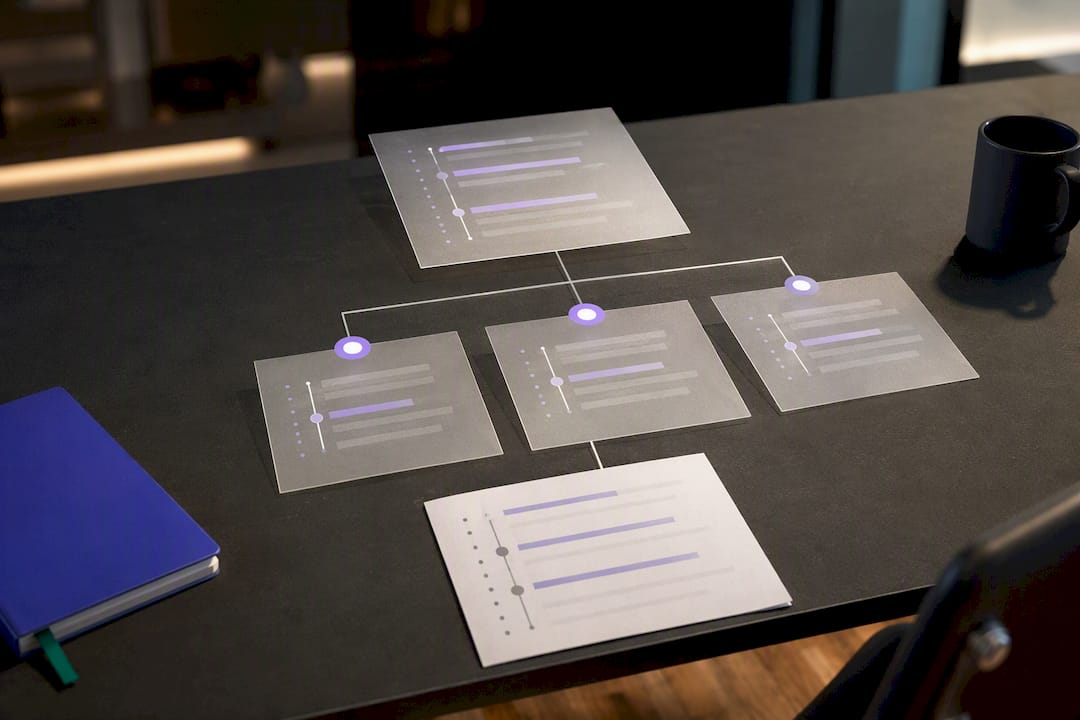
Pro Tip: Print a physical day sheet as a fallback even if your team runs digitally. If Wi-Fi drops thirty seconds before a keynote, you don’t want your stage manager troubleshooting a sync issue instead of calling the next cue.
Common Pitfalls And How To Write A Fallback Row
Every experienced producer has a list of things that go wrong more often than clients expect: a speaker who runs long, a video file that won’t play, a wireless mic that cuts out, a no-show panelist, or a venue that suddenly enforces a hard curfew you didn’t plan for.
The fix isn’t avoiding these problems, it’s writing your ROS so the crew already knows what to do when one happens.
- Speaker overruns: log a “trim point” in the notes column, the exact place in a talk where the emcee can politely cut in without derailing the segment.
- Media failure: note a backup file location and who has authority to skip the segment entirely if the fix takes longer than 60 seconds.
- Mic failure: log a backup mic number and its location, not just “use spare.”
- No-show talent: write who absorbs that time slot (usually the emcee or the next speaker) and by how much.
- Room or curfew changes: flag which segments are “cuttable” in advance so nobody has to make that call live under pressure.
Color-coding helps here more than most planners expect. Highlight rehearsal-only rows in one color, contingency rows in another, and confirmed final cues in a third, so anyone glancing at the sheet mid-show can tell what’s locked and what’s a fallback without reading every line.
Templates, Generators, And Day Sheets: Picking The Right Format
The format you choose depends on how complex your event is, not personal preference. A single-stage event with one speaker track can run on a simple spreadsheet. A multi-room conference cannot, and forcing it into one sheet is how sessions start colliding on the same AV crew.
The structure that scales best is a multi-tab master file: one tab for the ROS itself, one for contacts, one for media assets and file locations, and one for rehearsal notes. Interactive generators that auto-calculate downstream times when a duration changes remove a real source of manual error, since shifting one segment by ten minutes shouldn’t require you to hand-edit every row after it.
- Build a separate ROS per room or stage once you’re running more than one concurrent track.
- Give the AV desk its own filtered view showing only technical cues, not talent notes or contact info.
- Print oversized, high-contrast cue cards for anyone calling the show from a dark booth. Many practitioner templates include a ‘how to use’ tab and a rehearsal row specifically to help vendors or venue tech staff get oriented fast.
How Jubiliq Fits Into A Living Run-Of-Show Workflow
Some event planning platforms build their interfaces around the principle that everyone should see a single current version, not multiple outdated copies. An adaptive interface can adjust based on event type to show only relevant tools for coordinators and organizers.
Consolidating RSVPs, vendor contracts, and task scheduling into one system can allow the same data feeding a guest list also to feed the day-of timeline. Real-time updates and a printable day sheet can help ensure the stage manager and caterer work from the same numbers on the event day, instead of relying on unsynced spreadsheets.
Try Jubiliq For Your Next Event’s Run Of Show
Jubiliq is the alternative to juggling five disconnected spreadsheets for a single event, one adaptive platform that reshapes itself around whatever you’re running, whether that’s a wedding, a corporate gala, or a fundraiser with paid ticketing.
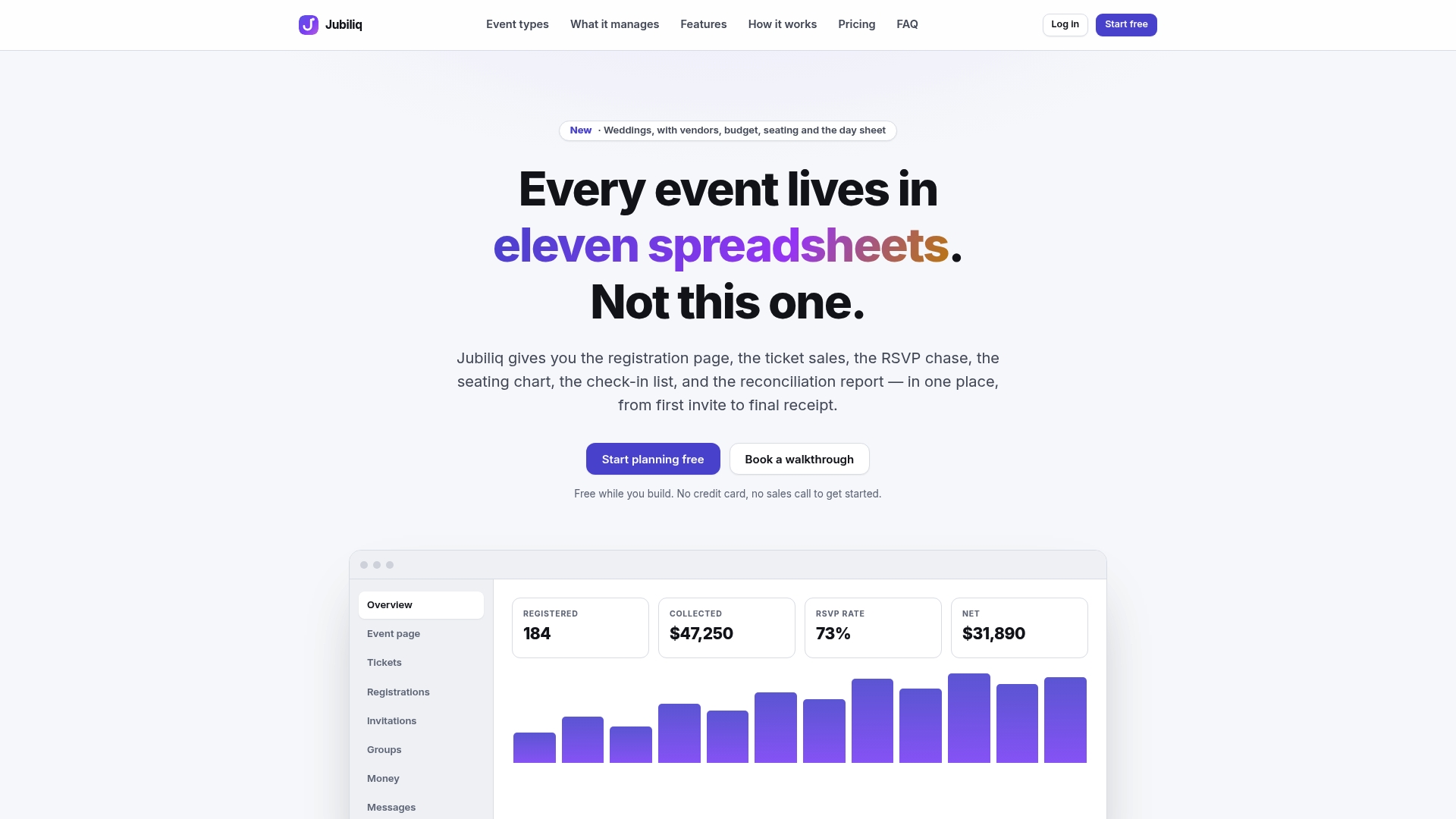
The real-time updates and printable day sheet map directly onto the locking and version-control practices covered above: one master file, one owner, changes visible to every stakeholder the moment they happen. That’s the exact problem stage managers solve manually with headsets and timestamped exports, built into the platform instead.
Jubiliq’s Starter plan is free for events without paid tickets, like weddings, parties, or planning-only use. For events selling registrations or tickets, the Organizer plan runs 2% per paid registration plus Stripe fees, and larger organizations running multiple events can get custom Enterprise pricing. Head to the Jubiliq planning dashboard and build your first day sheet before your next rehearsal.
Templates And Guides Worth Bookmarking
For downloadable structures, check Sessionboard’s live ROS generator and ProCore Productions’ sample template, both built for direct reuse.
Sources
- What Is a Run of Show? The Insider’s Guide for Corporate Event Planners | Centric Events
- Run of Show Template — Minute-by-Minute Event Doc (Sessionboard)
- Free Run of Show Template (ProCore Productions)
- What Is a Run of Show? (Chronolio)
FAQ
What Does A Run Of Show Mean?
A run of show is the crew-facing document that lists every cue, timestamp, and owner needed to execute an event minute by minute. It’s built for the production team, not attendees, and it functions as the operational script for show day.
What Is The Run Of The Show?
“The run of the show” refers to the same document, the sequence of cues and timed actions that keep a live event on schedule. It’s typically owned by a stage manager or show caller and locked roughly 48 hours before doors open after a full technical rehearsal.
What Is Another Term For Run Of Show?
Common alternate terms include “show flow,” “production timeline,” and “cue sheet,” though each carries slightly different emphasis depending on the industry. A television or live-broadcast crew might say “rundown,” while a corporate event team usually sticks with “run of show” or “ROS.”
What Is The Difference Between Run Of Show And Agenda?
An agenda is attendee-facing and describes what guests will experience and when. A run of show is crew-facing and tells the production team exactly what to execute, second by second, and confusing the two is a frequent cause of show-day timing errors.
A Practical Perspective On Run-Of-Show Discipline
Most advice on run-of-show documents focuses on the template itself, the columns, the formatting, the color-coding, and treats the discipline of maintaining it as an afterthought. That’s backwards. A perfectly formatted ROS with three people editing three different copies fails just as hard as no ROS at all.
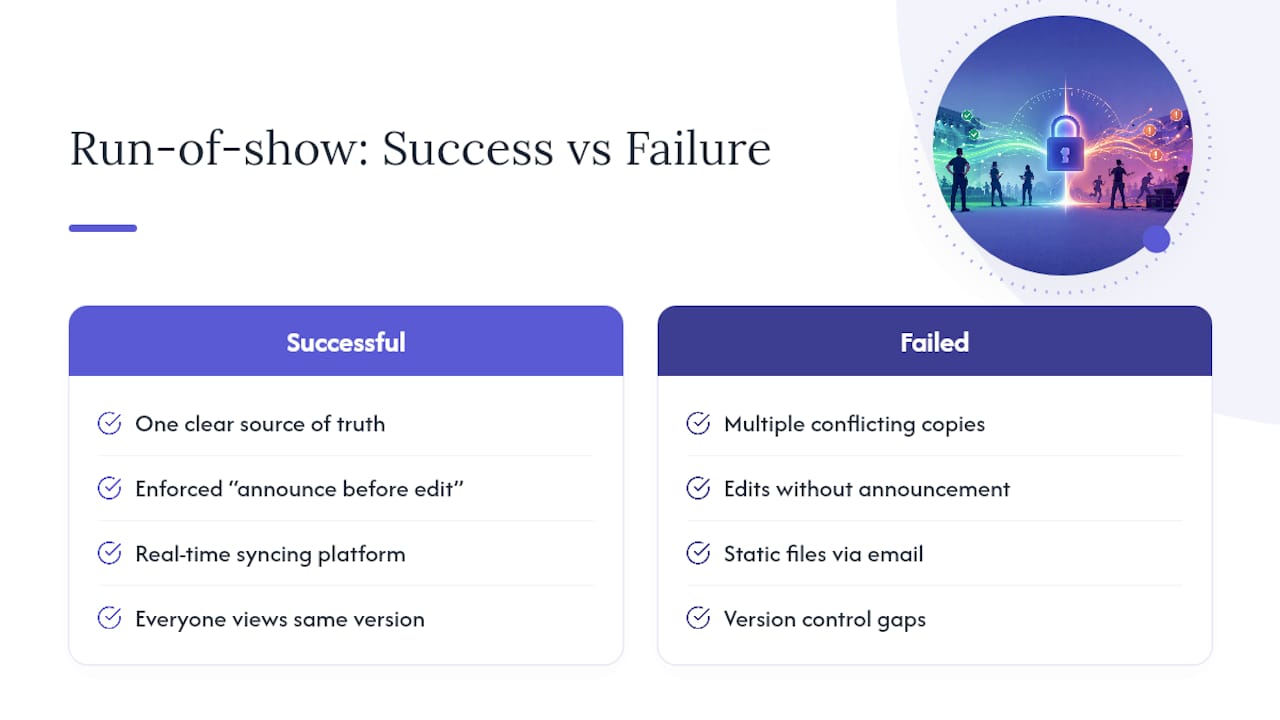
What separates events that run smoothly from ones that don’t usually isn’t the sophistication of the spreadsheet. It’s whether one person had clear authority to be the single source of truth, and whether that authority was respected under pressure. A stage manager who enforces “announce before you edit” on headset, every time, without exception, prevents more disasters than any amount of buffer time built into the schedule.
The uncomfortable truth is that most ROS failures trace back to a communication gap, not a planning gap. The document was fine. The version control wasn’t. That’s exactly why platforms built around real-time syncing and a single adaptive interface, rather than static files passed around by email, matter more for execution than for planning. Jubiliq’s approach of keeping RSVPs, vendor details, and day-of timing inside one adaptive system reflects that same lesson: the plan only holds up if everyone is looking at the same version of it.
— HCRF