Event Organizers: Registration Confirmation Email and Calendar Templates

Event Organizers: Registration Confirmation Email and Calendar Templates
A registration confirmation email is the automated transactional message sent the moment someone signs up or buys a ticket. Its only job is to reassure the registrant their spot is secure, hand over the access details or order summary, and point them to what happens next. Everything below covers the exact elements, templates, and timing rules that make one actually work.
TL;DR:
- The confirmation email must include clear event details with explicit time zones, a support contact, and a visible order number to reduce support tickets.
- Sending the email immediately after registration or purchase ensures instant reassurance, except when payments are pending or manual review is needed.
- Using a single-column, mobile-first template with verified links, a calendar attachment, and accessibility features minimizes delivery failures and improves user experience.
- Including a visible order ID and backup information like a QR code helps prevent issues with ticket access and scanner failures at the event door.
- Automated confirmation flows should be tested across clients, with proper data mapping and a resend option to prevent support overload from missing or misdelivered emails.
Table of Contents
- What Belongs in Every Registration Confirmation Email
- Templates and Subject Lines You Can Steal Today
- When Should You Send a Confirmation Email?
- Setting Up Automated Confirmations Without Breaking Anything
- Why Confirmations Go Missing and How to Fix It
- Your Pre-Launch Checklist and Copy You Can Paste
- What I’ve Learned Watching Confirmation Emails Fail
- Automate the Whole Confirmation Flow With Jubiliq
- Primary Sources for Templates and Technical Guidance
- Sources
- FAQ
What Belongs in Every Registration Confirmation Email
A confirmation email that skips even one of these elements generates support tickets. Attendees who can’t find their join link, or can’t tell what time zone the “3:00 PM” refers to, will email you before they’ll dig through the message a second time.
Start with the subject line. Keep it clear and lead with the confirmation itself, such as “You’re in: [Event Name] on [Date]” instead of a generic “Thank you for registering.” Personalization tokens (first name, event name, ticket type) can improve open rates without adding length.
The body needs a confirmatory sentence up top, something like “Your registration for [Event Name] is confirmed, order #48213.” That order or registration number matters more than most organizers realize. It’s the fastest way for support staff to pull up a record when someone calls in confused.
From there, the essentials are:
- Event or session details with an explicit time zone label (never just “3:00 PM,” always “3:00 PM EST”)
- Access instructions, whether that’s a join link, a magic login link, a QR code, or an attached PDF ticket
- An “Add to Calendar” button or ICS attachment so the event lands on the registrant’s phone automatically
- An order or receipt summary when money changed hands, including ticket type, price, and payment method
- A support contact and a clear path to change or cancel the registration
- Mobile-first formatting, since a large share of these emails get opened on a phone screen within minutes of signup
Accessibility deserves a specific mention. Use a single-column layout, real text instead of text baked into images, and sufficient contrast on your CTA buttons. Confirmation emails commonly include an order number and ticket details precisely because organizers rely on those fields to resolve disputes later, according to Pipedrive’s roundup of confirmation email templates.
Templates and Subject Lines You Can Steal Today
Copy these, swap the merge tags, and send. Each template below covers a different registration type, since a webinar confirmation and a paid ticket confirmation need different information entirely.
1. Webinar confirmation
Subject: You’re registered for [Webinar Name] — [Date]
Hi [First Name],
You’re confirmed for [Webinar Name] on [Date] at [Time, Time Zone]. Your join link is below. Bookmark this email; you’ll need the link again on the day.
[Join the Webinar]
Questions before then? Reply to this email or reach us at [support email].
2. Paid event or ticket confirmation
Subject: Your ticket for [Event Name] is confirmed (Order #[ID])
Hi [First Name],
Order #[Order ID] is confirmed for [Event Name] on [Date] at [Venue/Time Zone]. Your ticket is attached as a PDF with a scannable QR code. If the scan fails at the door, staff can look you up by name or order number.
Order Summary: [Ticket Type] × [Quantity] — $[Amount]
[Download Ticket]
3. Account sign-up confirmation
Subject: Welcome — your [Product/Community] account is ready
Hi [First Name],
Your account is active. Here’s what to do first: [specific next action, e.g., “complete your profile” or “join the welcome session”].
[Get Started]
4. First-action onboarding confirmation
Subject: One more step to finish setting up [Event/Account]
Hi [First Name],
You’re registered. Before [Date], take two minutes to [specific task: upload a photo, choose a session, confirm dietary needs].
[Complete This Step]
Ticket and event templates commonly bundle an order summary, event details, calendar attachments, and QR codes into one message rather than splitting them across several emails, a pattern Pipedrive’s template library confirms works across ticketed formats.
Subject-line bank (mix and match by tone and audience):
- “You’re confirmed: [Event Name]”
- “See you at [Event Name] on [Date]”
- “Your spot is saved — [Webinar Name]”
- “Ticket confirmed: [Event Name], Order #[ID]”
- “[First Name], you’re on the list”
- “Confirmed! Here’s your access link”
- “Your webinar link for [Date] is inside”
- “Order #[ID] confirmed for [Event Name]”
- “Welcome aboard — account confirmed”
- “You’re registered. Here’s what’s next.”
- “[Event Name] tickets: confirmed and attached”
- “Almost there — one quick step left”
- “Registration complete for [Event Name]”
- “Save the date: your [Event Name] pass is ready”
- “Your QR ticket for [Event Name] is attached”
- “Confirmed for [Webinar Name] — add it to your calendar”
- “You’re in! [Event Name] details inside”
- “Ticket secured: [Event Name] on [Date]”
For hospitality-driven events where the confirmation doubles as a first impression, looking at examples of polished invitation and confirmation copy, like these hospitality-focused invite formats, can sharpen tone before you finalize your own.
Support footer snippet: “Didn’t get this email at the expected time? Check spam, then reply here or click [Resend Confirmation].” Calendar snippet: " [Download .ics]."
When Should You Send a Confirmation Email?
Send it immediately, within seconds of the completed registration or purchase. Automating that trigger removes the administrative burden of manual sending and gives the registrant instant reassurance that their signup went through, a point Automizy’s breakdown of confirmation email types makes clearly.
There’s one exception: when payment is still processing or a registration needs manual review (an application-based event, a scholarship ticket, a waitlist). In that case, send a holding message instead: “We’ve received your submission and it’s under review. You’ll hear from us within [timeframe].” Sending a full confirmation before the registration is actually final creates more confusion than it prevents.
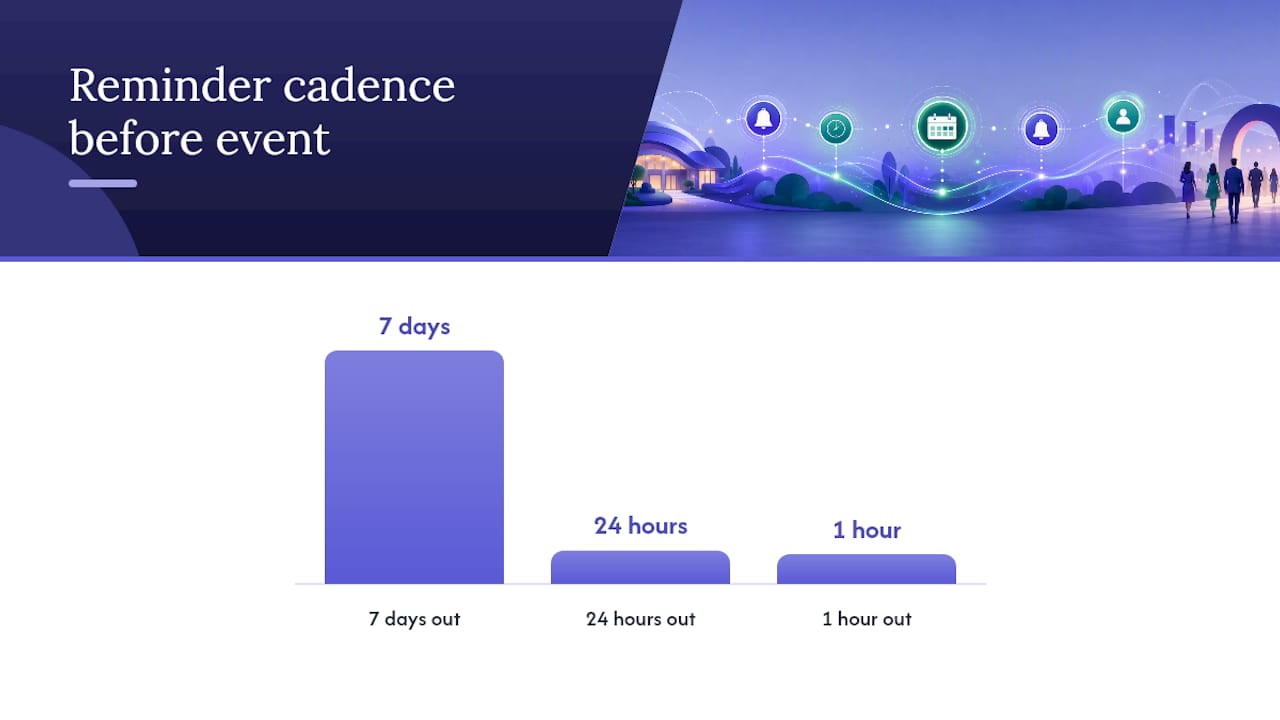
Reminder cadence works best layered, not single-shot:
- 7 days out — logistics reminder with parking, dress code, or prep materials
- 24 hours out — final details and a repeated join link
- 1 hour out — last-call nudge, especially effective for webinars where no-show rates spike
Common technical triggers include a form-submission webhook, an e-commerce or ticketing-platform purchase event, and a CRM status change. Whichever you use, always render the event time in the registrant’s local time zone, not just the organizer’s.
Setting Up Automated Confirmations Without Breaking Anything
Start with data mapping. Every merge tag needs a real field behind it: {{first_name}}, {{order_id}}, {{ticket_type}}, {{join_link}}, {{event_date_tz}}. Missing a mapped field is the single most common cause of an email that goes out reading “Hi [First Name],” to your entire list.
- Build the template using a mobile-first, single-column structure. Vendor-supplied HTML templates, like SendGrid’s confirmation template, show the standard pattern: headline, confirmation sentence, CTA button, plain-text fallback link.
- Create test registrations for every ticket type or registration path you offer, not just the default one.
- Preview across inbox clients (Gmail, Outlook, Apple Mail, and at least one mobile client) before launch.
- Verify every dynamic link, calendar file, and QR code actually resolves, not just that the email arrives.
- Version and name templates by ticket type so a “VIP” registrant never receives the general-admission confirmation by mistake.
- Build resend logic that checks for duplicate sends so a registrant who clicks “register” twice doesn’t get two confirmations with two different order numbers.
Some ticketing platforms let you configure separate confirmation templates per attendee category and give you a setting to disable or manually resend automatic emails, which is worth checking before you build a workaround from scratch, per Granicus’s support documentation.
Pro Tip: Never put a full credit card number, password, or government ID in a confirmation email body, even partially. If a registrant needs to verify identity, link to a secure portal instead of embedding sensitive data in plain text that could sit in an inbox for years.
Why Confirmations Go Missing and How to Fix It
Most “I never got my confirmation” tickets trace back to three causes: a mistyped email address at signup, spam-filter trapping, or a sender domain that hasn’t been authenticated properly. Mistyped addresses and spam folders account for the bulk of missing-confirmation complaints event and ticketing support teams field, according to AXS/ATG Tickets’ own help documentation.
Three fixes cut that volume fast:
- Add a plain troubleshooting line directly in your registration success page: “Didn’t get it? Check spam or click here to resend.”
- Give registrants explicit whitelist instructions (add the sender address to contacts) at signup, not after they complain.
- Build a resend button tied to order-ID lookup so support staff can resolve a missing-email ticket in under a minute instead of escalating it.
Track delivery rate, bounce rate, open rate, and support-ticket volume per event as your core deliverability metrics. A rising bounce rate usually means your list has stale or mistyped addresses; a falling open rate alongside a healthy delivery rate points to a subject-line or sender-reputation problem, not a technical failure.
Your Pre-Launch Checklist and Copy You Can Paste
Run through this before any confirmation flow goes live:
- Trigger fires immediately on completed registration or purchase
- All merge tags render correctly (no blank fields in test sends)
- Calendar attachment or “Add to Calendar” link opens correctly on iOS and Android
- QR code or ticket attachment scans and displays properly
- Order number and registration number are both visible in the body
- Support contact and resend link are present and clickable
- Test registrations sent for every ticket type or path
- Preview checked across at least three inbox clients
- Accessibility pass: readable without images loaded, single-column layout confirmed
Paste-ready lines:
- Confirmation sentence: “Your registration for [Event Name] is confirmed. Order #[ID].”
- Calendar CTA: " so you don’t miss it."
- Support footer: “Need to make a change? Reply here or visit [manage booking link].”
For tone, adjust formality to match the event, a corporate compliance webinar reads differently than a community fundraiser gala, but keep structure identical across every version. Consistent tone with your broader brand voice measurably improves how recipients engage with transactional email, a pattern Drip’s research on email tone backs up. If you run events in multiple regions, localize the date format and currency symbol, not just the language.
| Element | Why it matters | Common mistake |
|---|---|---|
| Order/registration number | Lets support find the record fast | Omitted or buried in fine print |
| Time zone label | Prevents no-shows from time confusion | Listing time with no zone |
| Calendar CTA | Increases actual attendance | Link included but not tested |
| QR code + visible order ID | Backup when scanners fail at the door | QR code with no fallback ID |
| Resend/whitelist instructions | Cuts “I never got it” tickets | No troubleshooting line at all |
What I’ve Learned Watching Confirmation Emails Fail
The mistake that generates the most support tickets isn’t a broken link. It’s ambiguity: a time with no time zone, a QR code with no visible order ID as backup, a “reply to this address” that bounces because the sender domain doesn’t accept replies. Fix those three things and ticket volume drops before you touch anything else.
Calendar CTAs and access links do more for attendance than any reminder sequence. A registrant who adds your webinar to their calendar the moment they sign up is far less likely to forget it exists three weeks later.
Run this experiment on your next event: add a visible order ID next to your QR code, and track how many “can’t find my ticket” tickets you get compared to the prior event. The drop is usually immediate.
— HCRF
Automate the Whole Confirmation Flow With Jubiliq
If you’re managing registration confirmations by hand, stitching together a form tool, a separate email platform, and a spreadsheet for order numbers, you’re doing three jobs that one system should handle. It generates ticket and QR delivery automatically, attaches calendar files without extra configuration, and lets you segment confirmation and reminder emails by ticket type or RSVP status.
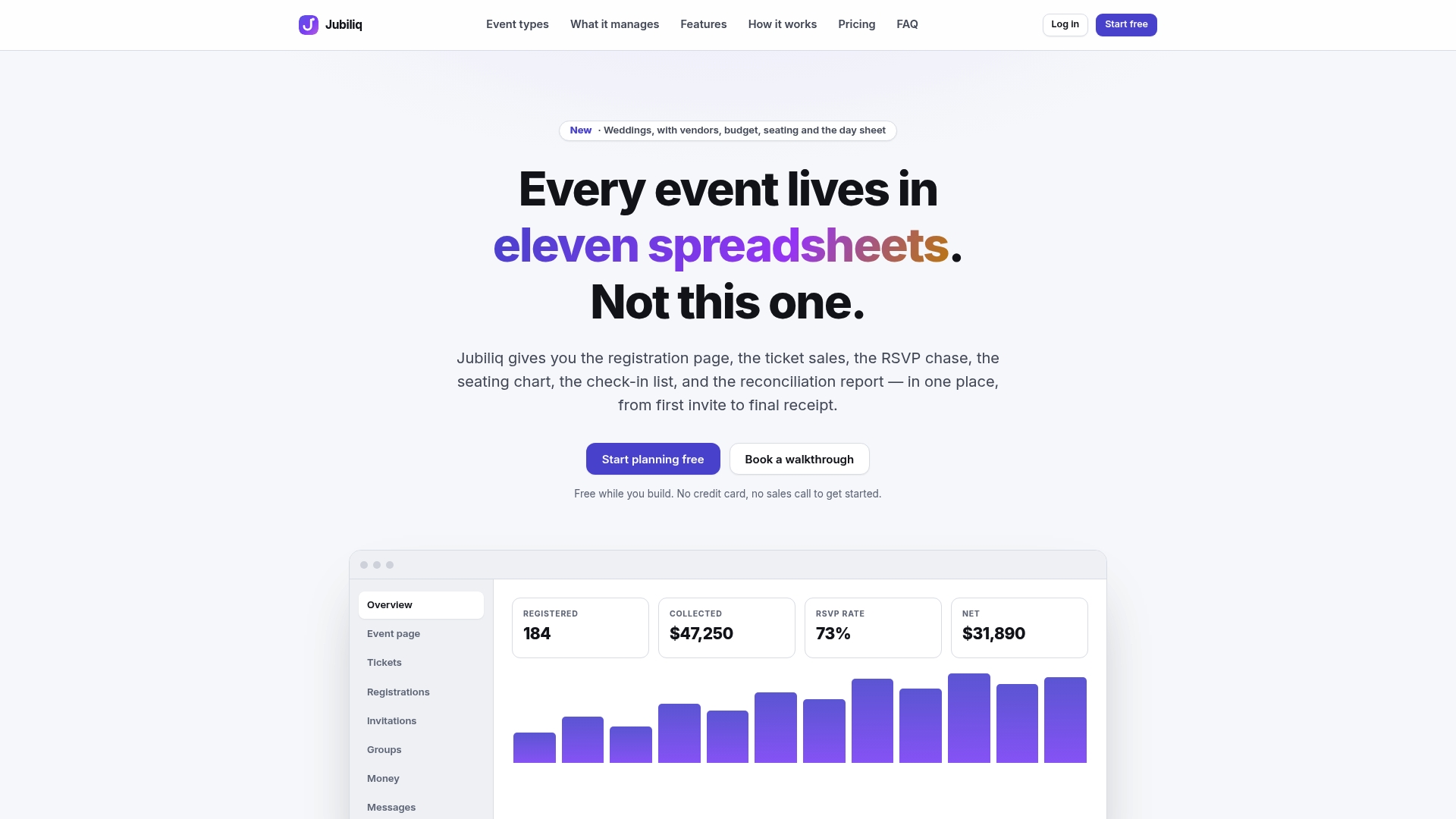
Instead of building merge-tag logic from scratch or testing across five inbox clients yourself, The adaptive interface adjusts the confirmation workflow to your event type, whether that’s a wedding RSVP, a corporate registration, or a paid fundraiser ticket, so you’re not configuring fields that don’t apply to your event. Real-time dashboards show who’s confirmed, who hasn’t opened their email, and where a resend might be needed, cutting the manual lookup work described in the deliverability section above.
If you’re ready to stop rebuilding confirmation flows for every event, take a look at Jubiliq’s event planning platform and see how it handles registration, ticketing, and follow-up emails in one place.
Primary Sources for Templates and Technical Guidance
The template structures and deliverability guidance in this article draw on a mix of practitioner writing and vendor documentation:
- Automizy’s guide to registration confirmation email types for timing and automation rationale
- Pipedrive’s confirmation email template collection for structure and copy patterns
- Granicus’s support documentation on custom confirmation emails for platform configuration steps
- AXS/ATG Tickets’ ticket delivery help center for deliverability troubleshooting
Check your specific ticketing or form platform’s own documentation before wiring webhooks or magic links, since exact field names and trigger options vary by vendor.
Sources
- 7 Types Of Registration Confirmation Emails And Subject Line Examples
- 23 confirmation email templates and examples
- Creating and sending custom registration confirmation emails
FAQ
What Is a Registration Confirmation?
A registration confirmation is the automated message or notice confirming that someone’s signup, ticket purchase, or application was successfully received and processed. It typically includes a confirmation statement, a reference number, and the details needed to attend or access what they signed up for.
Can You Give an Example of a Confirmation Email?
A short webinar example: “Subject: You’re registered for [Webinar Name] — [Date]. Hi [First Name], you’re confirmed for [Date] at [Time, Time Zone]. Your join link: [Join Webinar]. Add it to your calendar:.” Full templates for events, ticket purchases, and account sign-ups appear earlier in this guide.
What Is a Registration Email?
A registration email is any automated message tied to the signup process, most commonly the confirmation sent right after someone registers, but the category also includes reminder emails, waitlist notices, and follow-up emails about changes to a booking.
How Do I Write a Confirmation Email?
Lead with a clear subject line and an immediate confirmatory sentence that includes a reference or order number. Follow with event or access details, a calendar CTA, and a support contact, then keep the whole message scannable on a phone screen. Platforms like Jubiliq can generate this structure automatically from your event setup, which removes most of the manual copywriting.
How Do I Resend a Confirmation Email?
Most ticketing and registration systems include a manual resend option tied to the registrant’s email or order number, which support staff or the registrant themselves can trigger from a “resend confirmation” link. Always pair that link with whitelist instructions so the resent copy doesn’t land in spam again.